Most virtual staging demos show one carefully chosen photo. Real listings have a dozen or more rooms, and the hard part isn't staging one of them, it's staging all of them consistently without writing instructions for each.
So we ran the test we wanted to see: a whole house, one prompt, one batch. This virtual staging case study documents the setup, the results and the lessons, including where the AI made decisions we didn't ask for.
The setup
We needed photos we could publish freely, without using anyone's real home. So we created six empty-room listing photos with our own image generator: a living room, a carpeted room with gray walls, a kitchen, a room with sliding doors to the backyard, a small spare room with a closet, and a bare backyard patio.
Then we ran them through Batch edit in OptimAImage with exactly one instruction for all six photos:
- Prompt: “virtual stage modern house”
- Photos: 6, in a single batch
- Per-photo instructions: none
- Quality mode: Max
Behind the scenes, the AI Agent expands the short prompt into a separate, room-aware brief for every photo. That's the part we wanted to put under pressure.
We recorded the whole run in the app, from upload to download:
The results
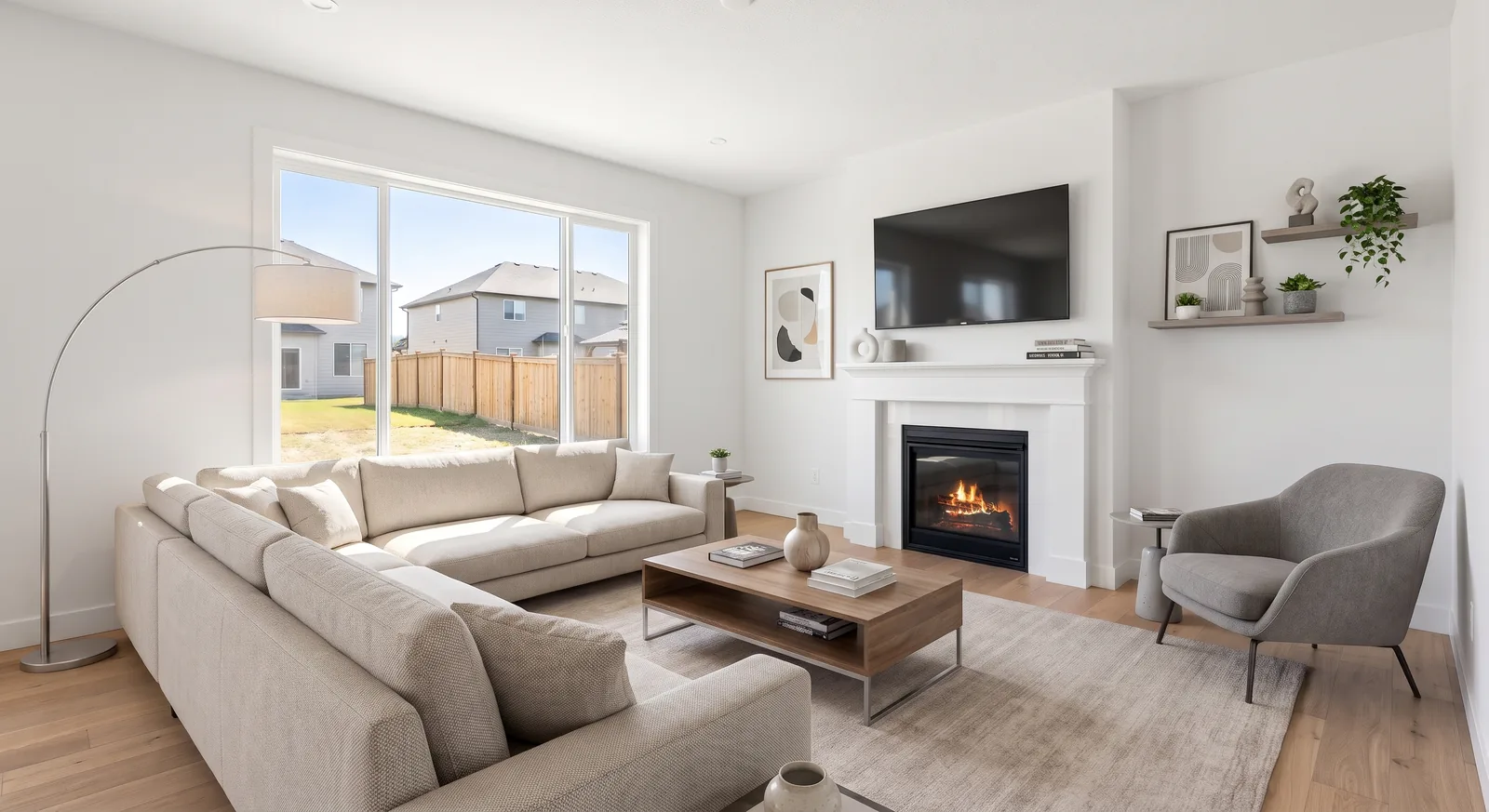
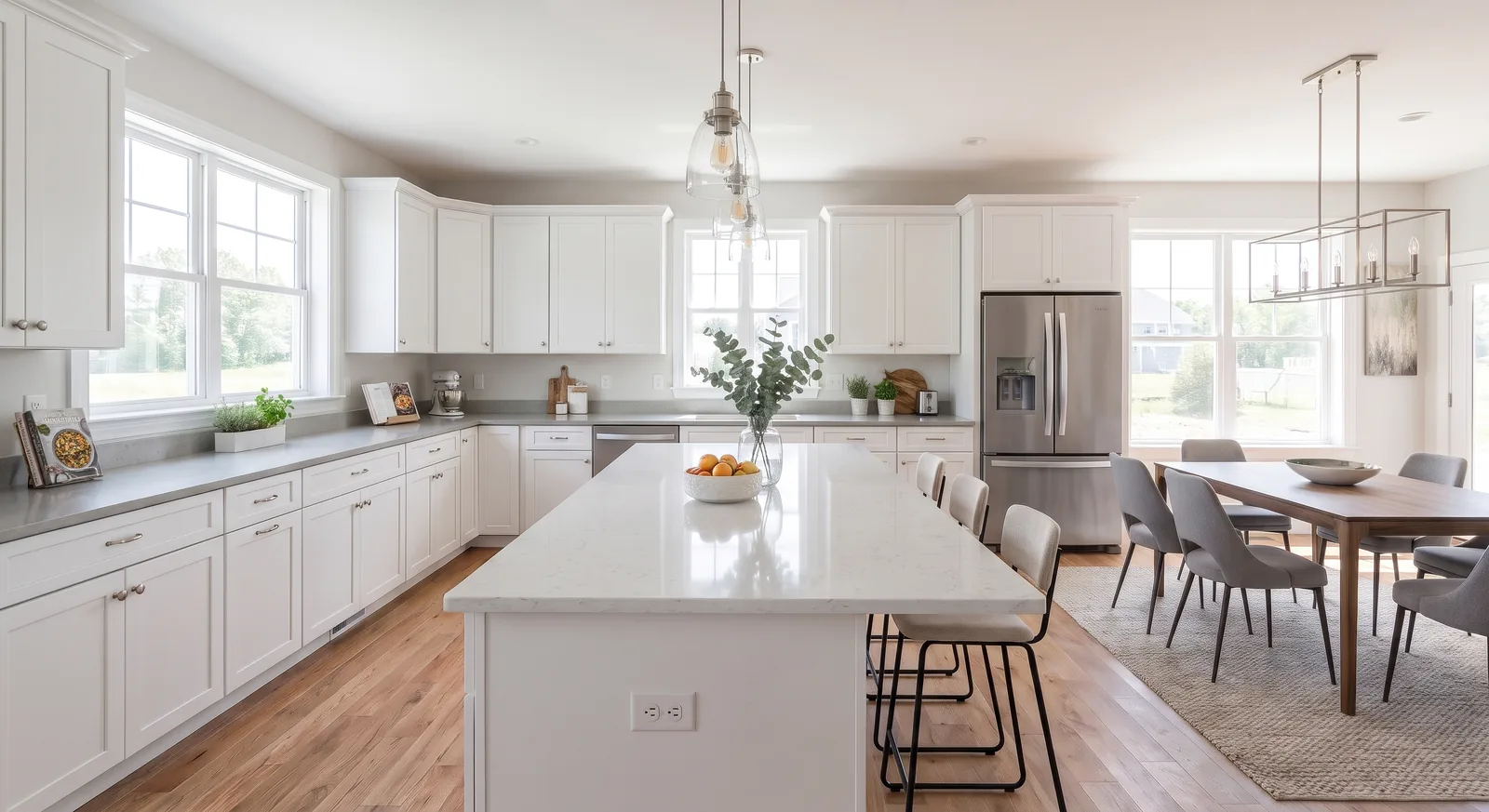
All six rooms came back staged in the same batch. The style was consistent across the house: neutral grays and creams, walnut and light-wood tables, abstract black-and-white art, green plants as accents. It looks like one designer furnished one home, which is the whole point.
What the AI got right
- Architecture stayed put. Windows, the fireplace, cabinets, countertops and flooring match the originals.
- Furniture fits the room. The kitchen got stools at the island and a dining table in the open area; the patio got outdoor seating, a fire table and lanterns rather than indoor furniture.
- Light matches. Shadows follow the direction of the daylight in each photo.
What surprised us
We never told the AI what each room was for, so it decided:
- The carpeted room with gray walls became a family room with a sectional sofa, not the bedroom we had in mind.
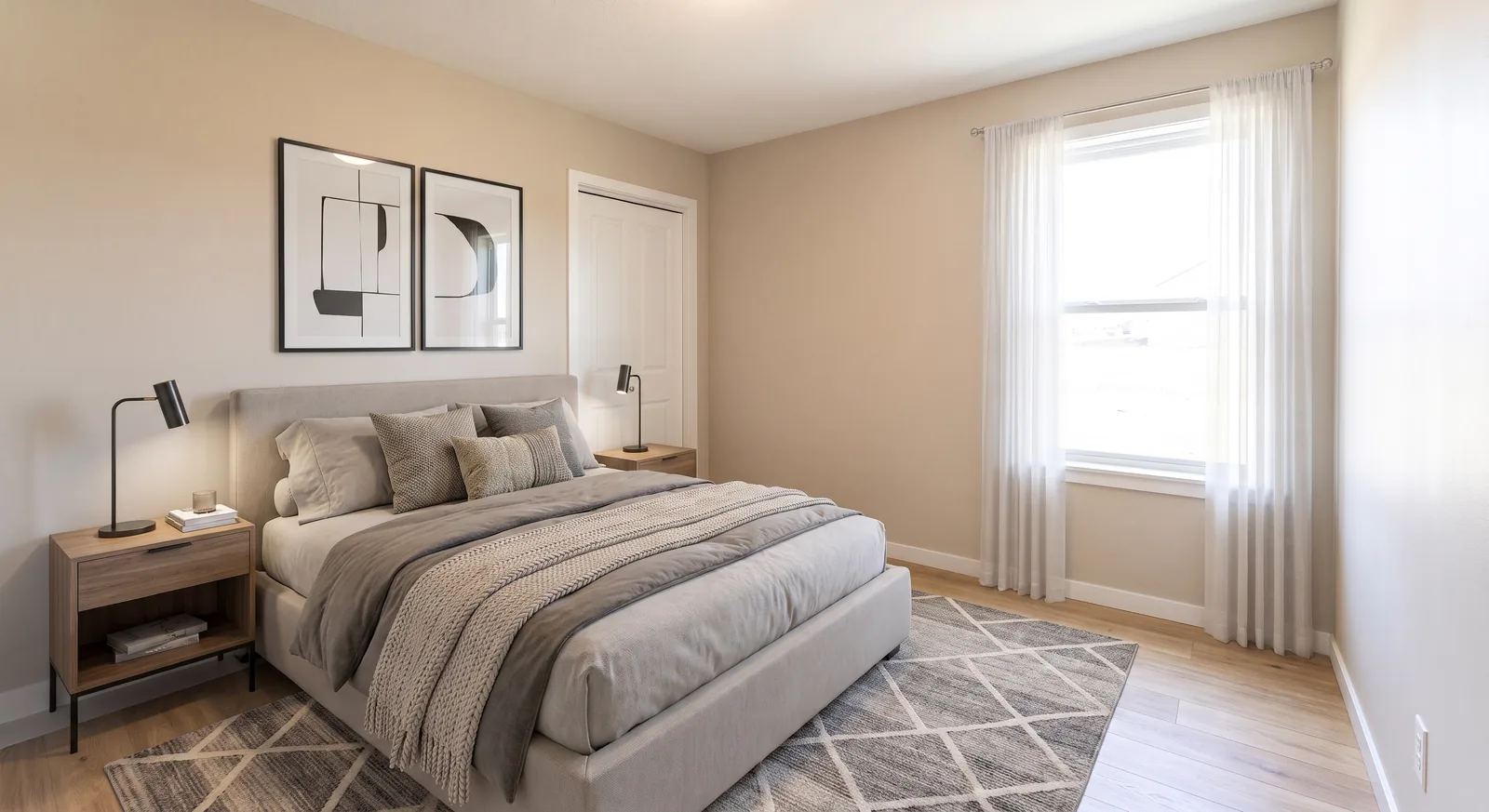
- The small spare room with a closet became a bedroom, not an office.
- The room with sliding doors became an open-plan living room, not a dining room.
Each decision is defensible, and arguably what a stager would do. But if your listing says “4 bedrooms,” the photos need to show four bedrooms.
Why one batch beats one photo at a time
You can stage a single photo in a general-purpose AI chatbot, but a whole listing exposes the limits of that workflow. Every photo is a separate conversation, the style has to be described again each time, and there's nothing tying the living room's palette to the bedroom's. Some chatbots also redraw windows or flooring instead of furnishing the real room.
A batch with one shared brief removes all three problems: one instruction, one consistent style across every room, and a model that is instructed to keep the architecture. For six photos the difference is noticeable; for a 30-photo listing it decides whether staging is practical at all.
Lessons for your own listings
- One prompt is enough for style. You don't need to describe the sofa. A short style instruction plus the AI Agent produced a coherent house.
- Name the room when it matters. Batch edit lets you give individual photos their own instruction, such as “stage as a bedroom”, while the rest follow the shared prompt.
- Review every image before publishing. Check that permanent features are untouched and look for stray artifacts. One of our generated source photos had a fake “MLS” mark in a corner, which carried into the staged version; we cropped it out of both images before publishing.
- Disclose it. Label staged photos and keep the originals; see our virtual staging disclosure guide.
What we'd do differently
- Add room overrides up front for the two or three rooms whose purpose matters to the listing.
- Draft in Fast mode first to agree on the style, then run Max only on the final set.
- Generate variations for the cover photo so there is a choice for the image that does the most work.
What it cost
Six photos in Max mode used 600 credits. Depending on your plan that's roughly $0.21 to $0.33 per photo, and Fast mode brings it down to about $0.09 per photo on the annual Pro plan. For a full comparison with physical staging and per-photo services, see our virtual staging cost breakdown.
Try the same test
The best way to judge virtual staging is with your own photos. Shoot the empty rooms using the tips in our guide to photographing empty rooms, upload them to the AI virtual staging tool, type one sentence and compare the results room by room.