Video tutorial · 1:22
Interior Design: Compare up to 4 ideas
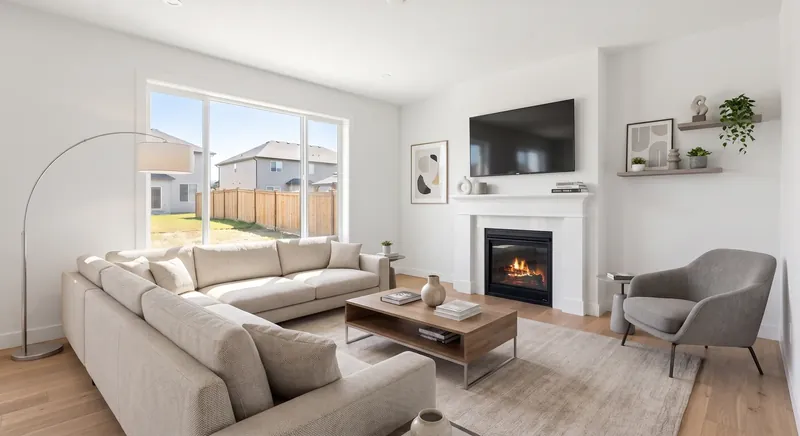
One photo → 4 looks
Here's how to compare up to four ready-made looks on the same photo.
Step by Step
Upload your photo
First, upload a photo of your room.
Tap Choose a look
Then tap Choose a look, to open the ready-made ideas.
Pick what you want to do
Pick what you want to do, and the space.
Turn on Compare looks
Turn on Compare looks. You can pick up to four.
Pick 4 looks
Pick the looks you want to compare.
Use 4 looks
Tap Use. Each look becomes its own image, from the same photo.
Make it yours
The look is only a starting point, and you stay in full control. For example, add a photo of the sofa you just bought, and write: use this sofa in the room. It goes with every look you picked.
Check the cost, then Generate
Check the cost: one image per look. Then tap Generate.
All 4 looks render at the same time
All the looks render at the same time. You can close the app: you'll get a notification.
Compare them side by side
Here they are, side by side, with your original in the corner.
Open them full size
Open them full size, and go from one look to the next.
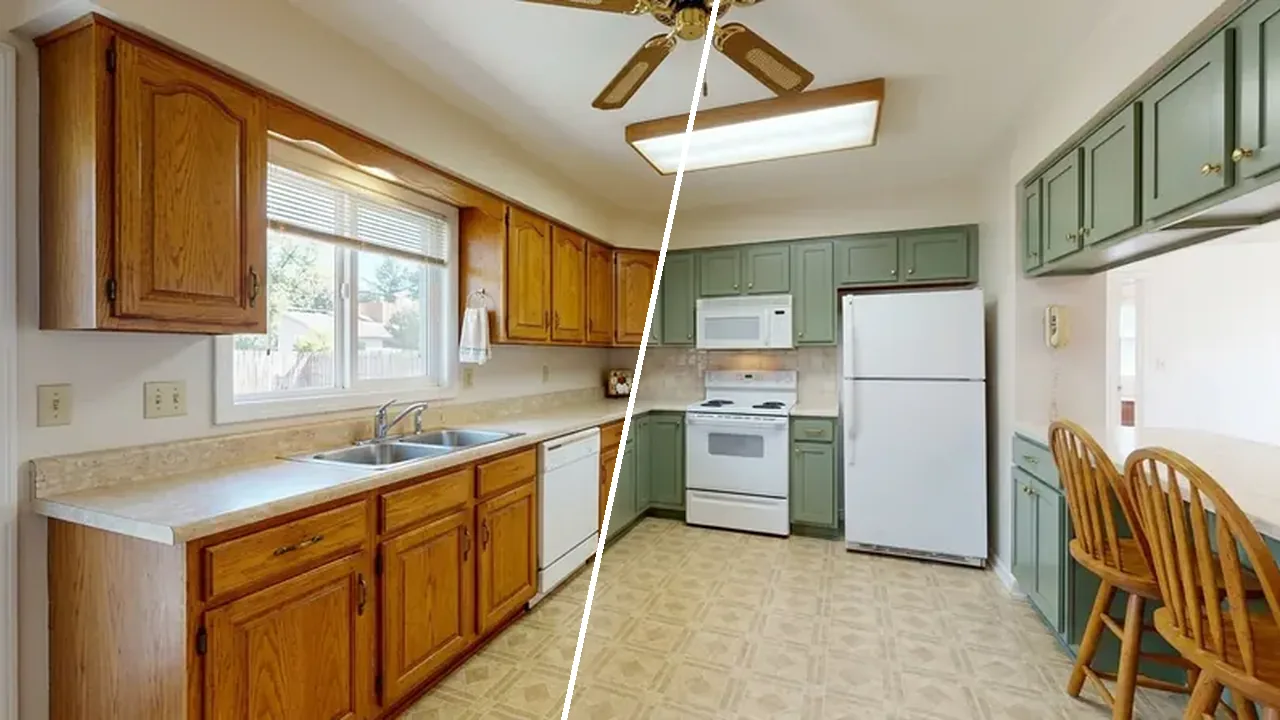
Try It on Your Own Photo
Free trial · No credit card · Plans from $9.99/mo
Plans from $7.50/month or pay as you go · Cancel anytime