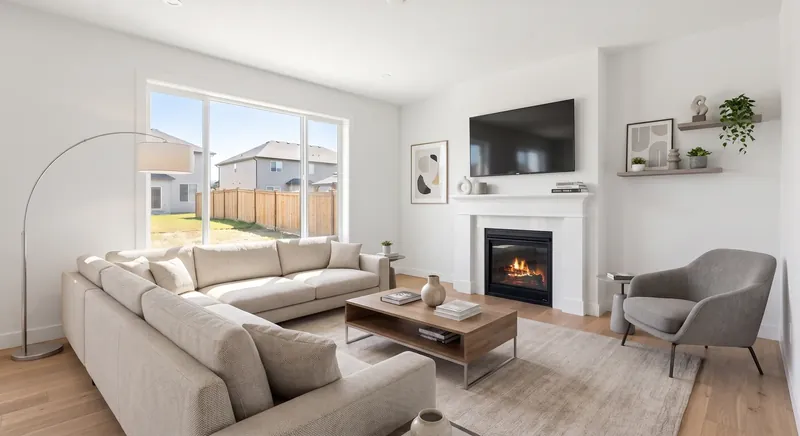
Video tutorial · 1:06
Variations
One photo, one prompt, one image per option
Here's how to get several versions of one edit, with Variations.
Step by Step
Upload your photo
First, tap Add Image and upload your photo.
List the options to compare
In the prompt box, list the options you want to compare, with a number for each.
Set Variations to 2
Open Variations and pick two: one image per option. You can pick up to four.
The AI Agent is always on
The AI Agent is always on. It writes a separate instruction for each variation.
Check the cost, then Generate
Each variation costs the mode's credits: here, two times a hundred. Failed images are refunded. Tap Generate.
The variations run at the same time
The variations run at the same time. You can close the app: you'll get a notification when they're done.
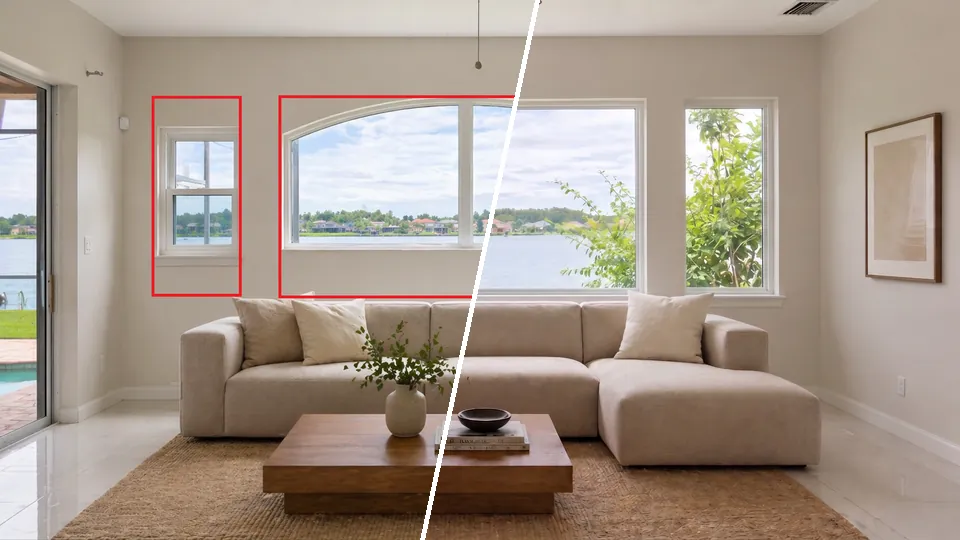
One result per option
Each result shows your original in the corner.
Compare them full size
Open them full size to compare.
Download your favorite
Then download your favorite, or all of them.
Try It on Your Own Photo
Free trial · No credit card · Plans from $9.99/mo
Plans from $7.50/month or pay as you go · Cancel anytime