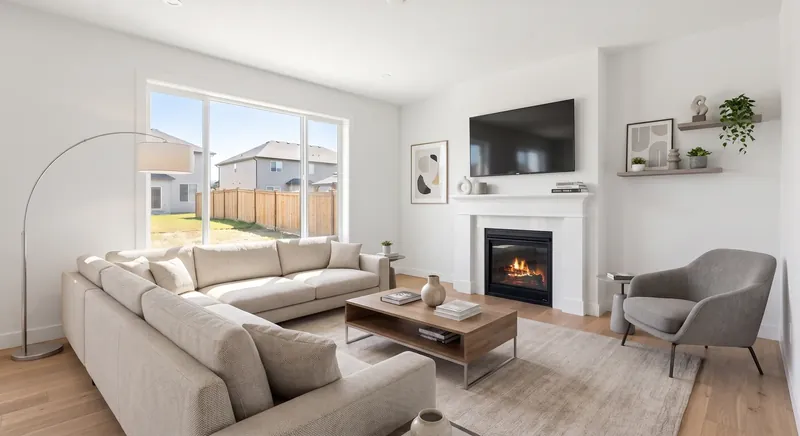
Video tutorial · 1:49
Property video
Listing photos → scenes → one property video
Here's how to make one property video from your listing photos.
Step by Step
Switch to Video
In Studio, switch to the Video tab.
Choose the listing's project
Choose the listing's project, so its scenes stay together.
Scene 1: a photo and a short direction
Set up the first scene: add a photo and write a short direction. Our AI Director agent works out the rest. Then tap Add this scene.
Scene 2: the next room
Do the same for the next room.
Scene 3: the last room
Set up the last room. It joins the plan when you review the price.
Review price, then Generate video
Tap Review price: one price covers every scene. Pricing is dynamic, so you only pay for what you need. Then tap Generate video.
Your scenes are being made
All your scenes are made together. You can leave this screen.
Your scenes, in order
On the Scenes tab, your scenes are in order. Pick a version for each scene, and change the order with the arrows.
Export one property video
Tap Export to join them into one property video. Then save it, or share it.
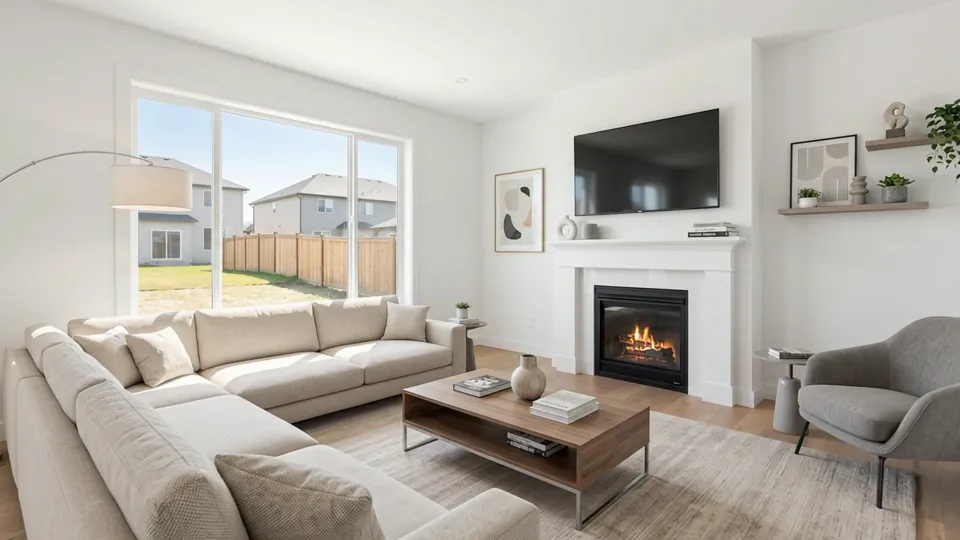
Try It on Your Own Photo
Free trial · No credit card · Plans from $9.99/mo
Plans from $7.50/month or pay as you go · Cancel anytime