Video tutorial · 1:50
Batch Edit
One edit, applied to many photos at once
Here's how to apply one edit to many photos at once, with Batch edit.
Step by Step
Switch to Batch edit
Switch to Batch edit. It applies one edit to many photos at once.
Add the photos to edit
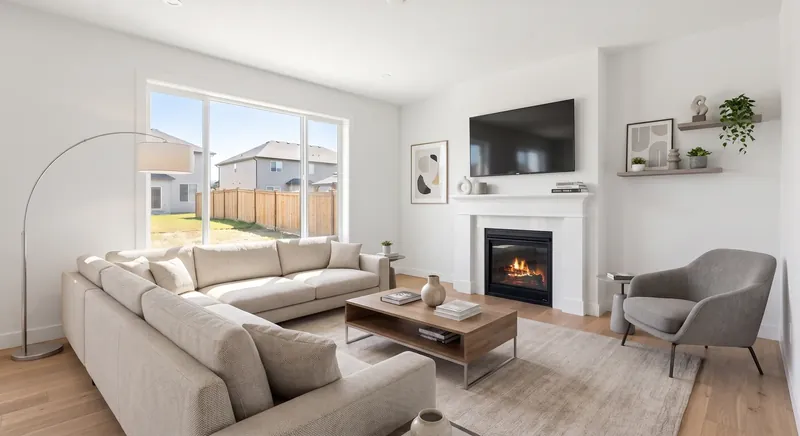
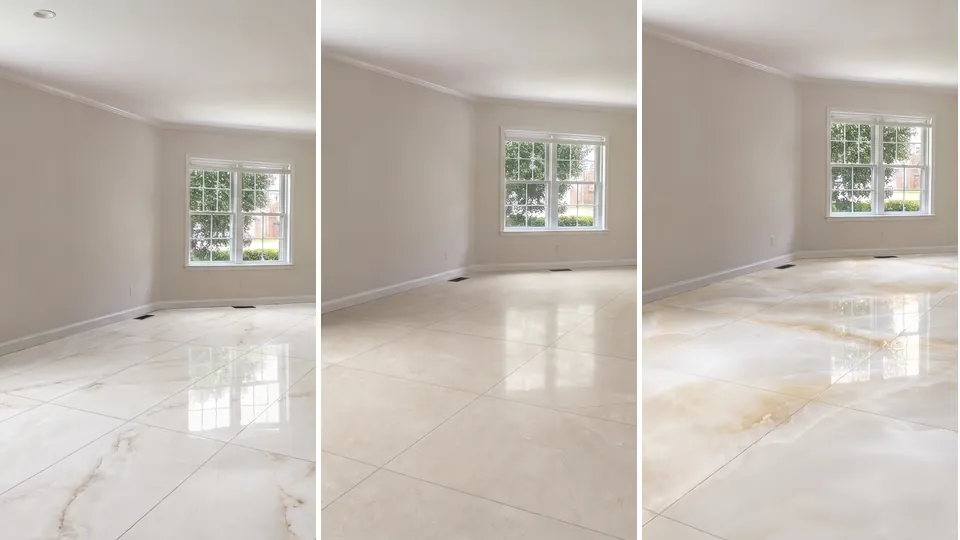
Add the photos you want to edit. You can add up to a hundred. Here, six empty rooms.
Describe the edit once
Describe the edit once. The same instruction is used for every photo.
Pick a generation mode
Pick a generation mode. Max gives the best quality, at a hundred credits per image.
The AI Agent is always on
The AI Agent is always on in Batch edit. It tailors your instruction to each photo.
Check the cost, then Generate
Check the cost: six images, six hundred credits, and failed edits are refunded. Tap Generate, and confirm.
Results appear as each photo finishes
Results appear as each photo finishes. You can close the app: you'll get a notification when the batch is done.
Each card shows the original in the corner
Each card shows the original photo in the corner.
Open any result full size
Open any result full size, and go through the whole batch.
Download the whole batch
Then download everything as one zip, or one by one.
Try It on Your Own Photo
Free trial · No credit card · Plans from $9.99/mo
Plans from $7.50/month or pay as you go · Cancel anytime