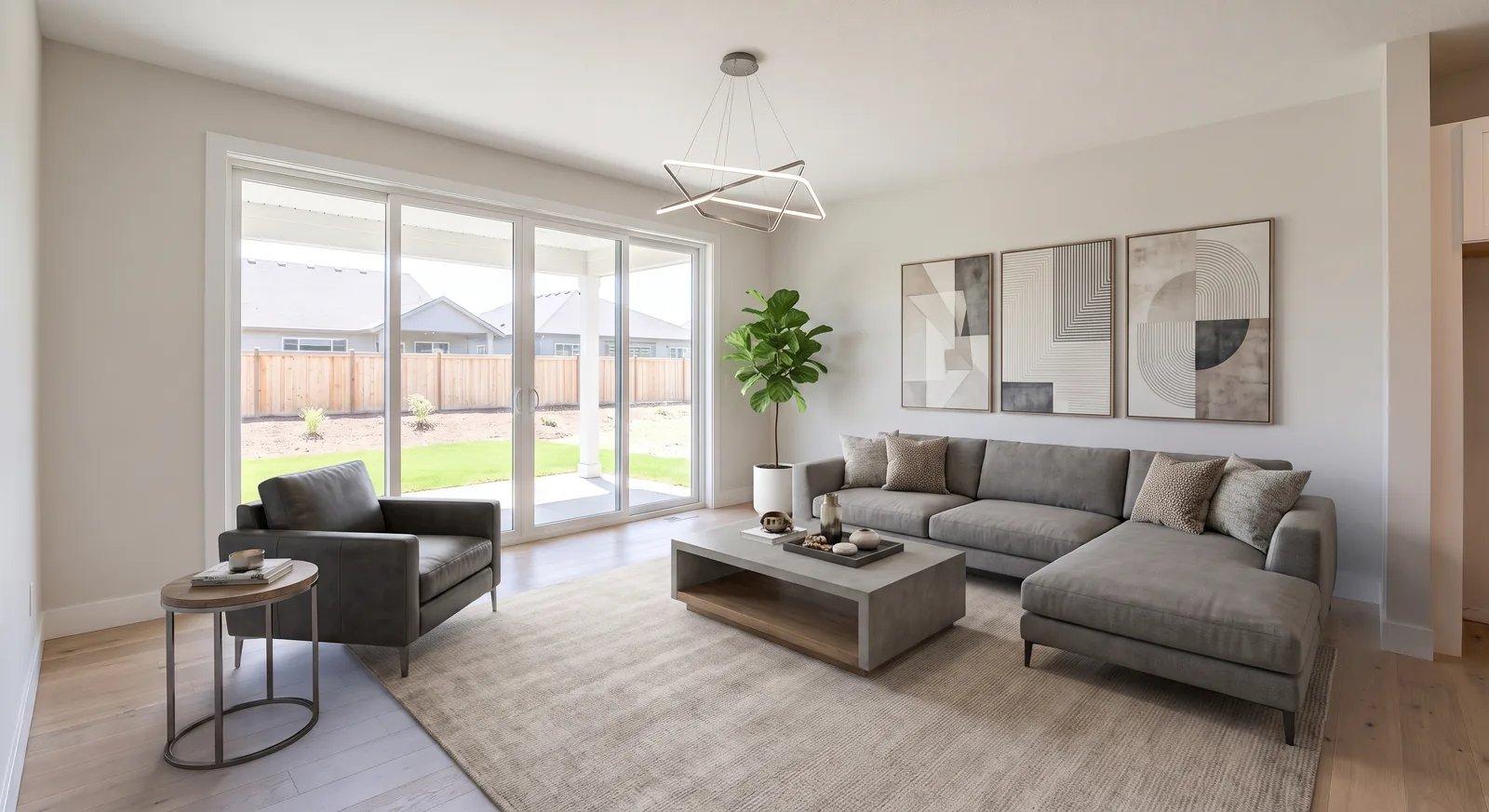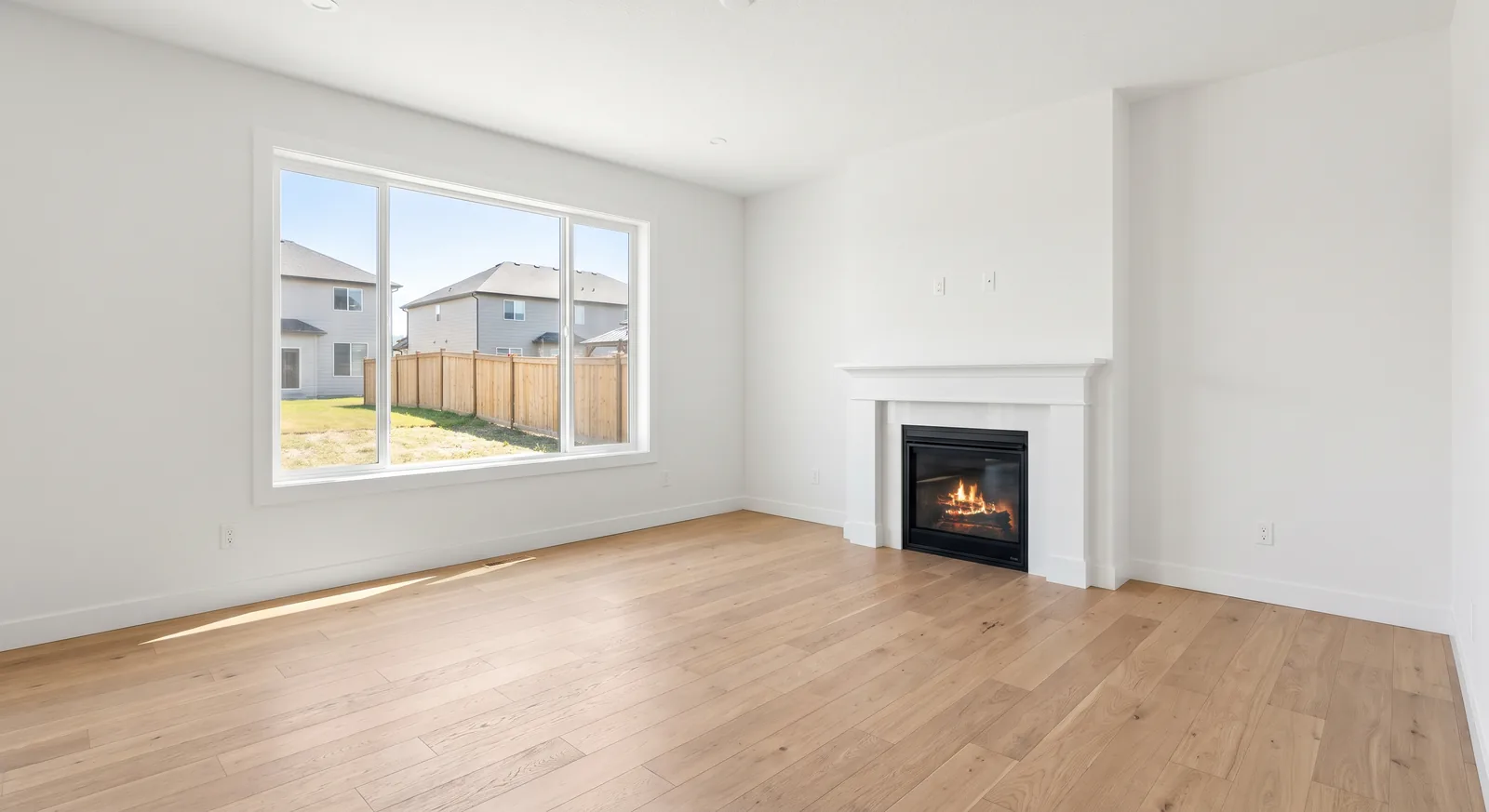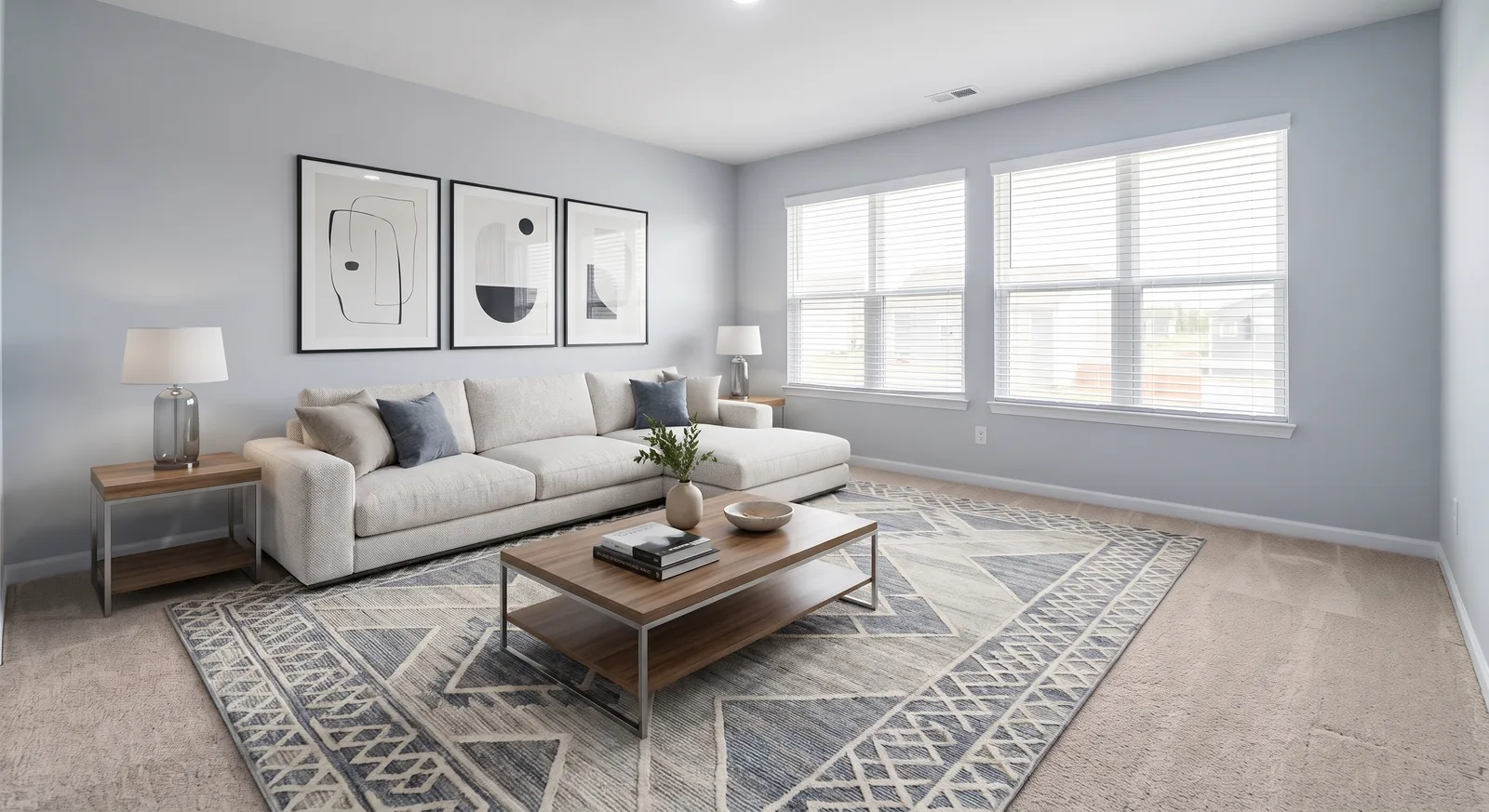
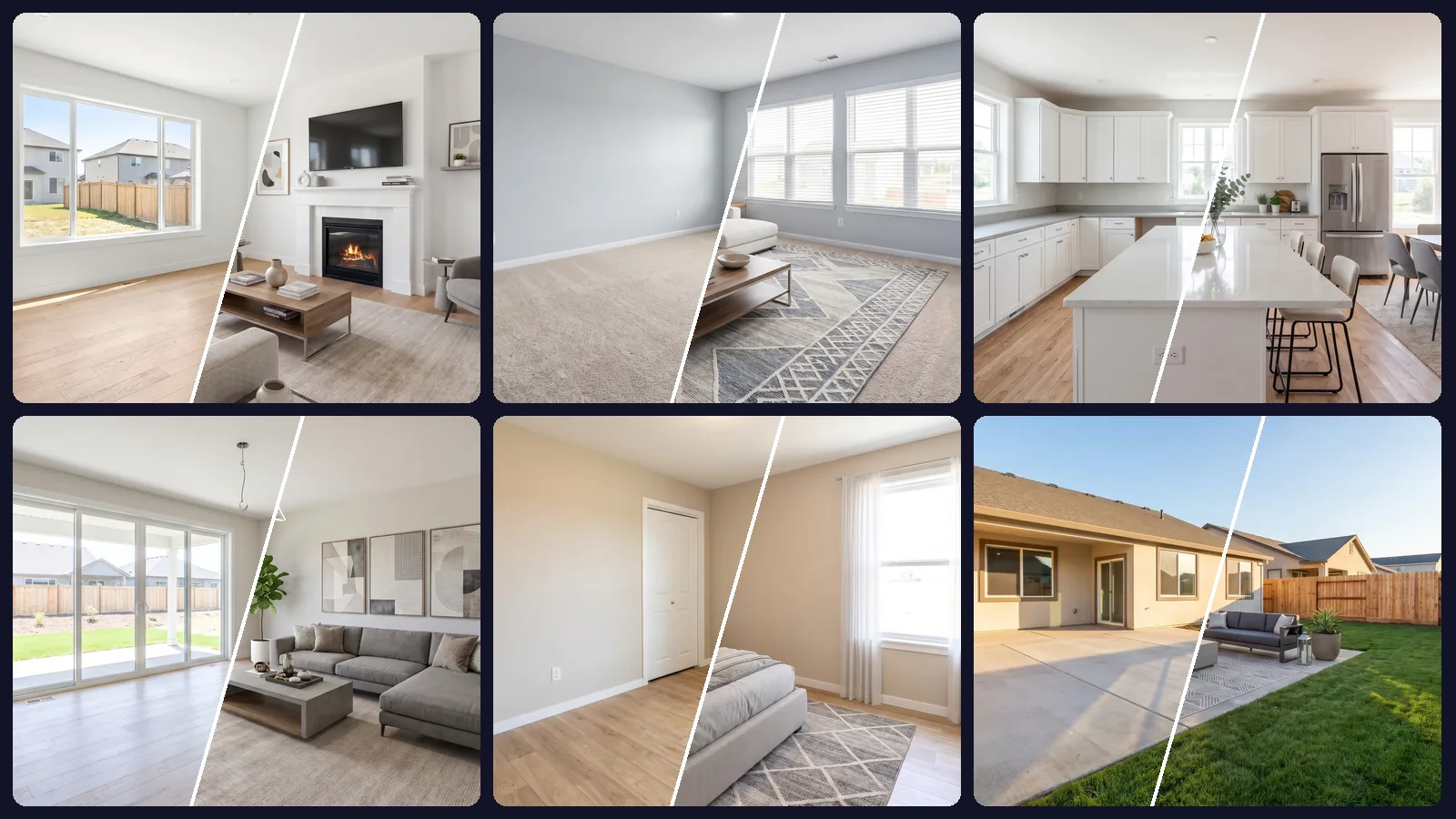
Staging one empty room makes a nice demo. Staging a whole listing, every room in a matching style, is where most tools turn into an afternoon of uploads and copy-pasted instructions. This tutorial shows how to virtually stage a whole listing in one pass with Batch edit in OptimAImage, first as a short video, then step by step.
We use the same six empty rooms as our one-prompt case study: a living room, a family room, a kitchen, a great room, a bedroom and a patio.
Watch the full walkthrough
The video takes under two minutes. The steps below cover the same flow in more detail, with notes on what to change for your own listing.
Before you start
You need three things:
- Photos of the empty rooms. Wide, level, well-lit shots stage best. If you take them yourself, our guide on how to photograph empty rooms for virtual staging covers angles and light.
- A plan with Batch edit. Batch edit is included in selected paid plans; the pricing page shows which.
- Enough credits for the batch. Each photo costs the credits of the mode you pick, and you see the total before anything runs.
Step-by-step: stage a listing with Batch edit
1. Switch to Batch edit
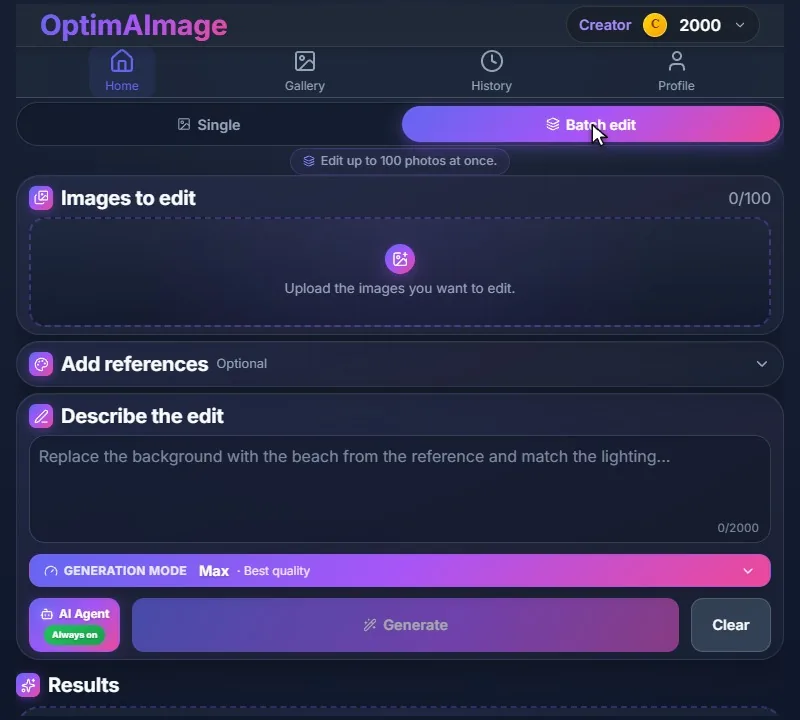
Open the editor and choose Batch edit at the top. Single mode edits one photo at a time. Batch edit applies the same edit to every photo you add, and each photo becomes its own result.
2. Upload every empty room
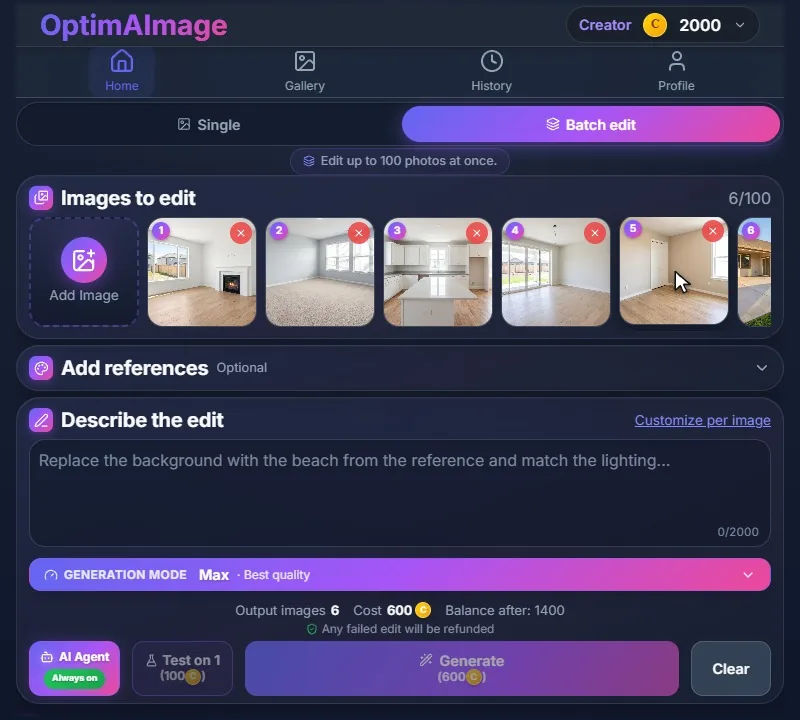
Click the upload tile under Images to edit and select all the rooms at once. A batch takes up to 100 photos. Each one gets a number, so results are easy to match to their originals later.
If you want a specific look, open Add references and attach up to four reference images, such as a sofa you like or a mood board. Every photo is then staged with them in mind.
3. Describe the edit once
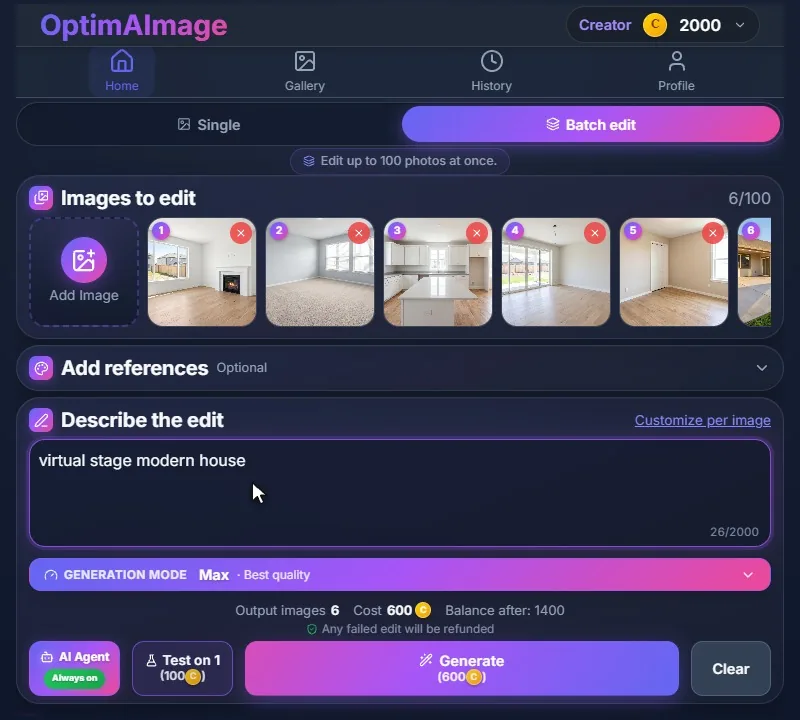
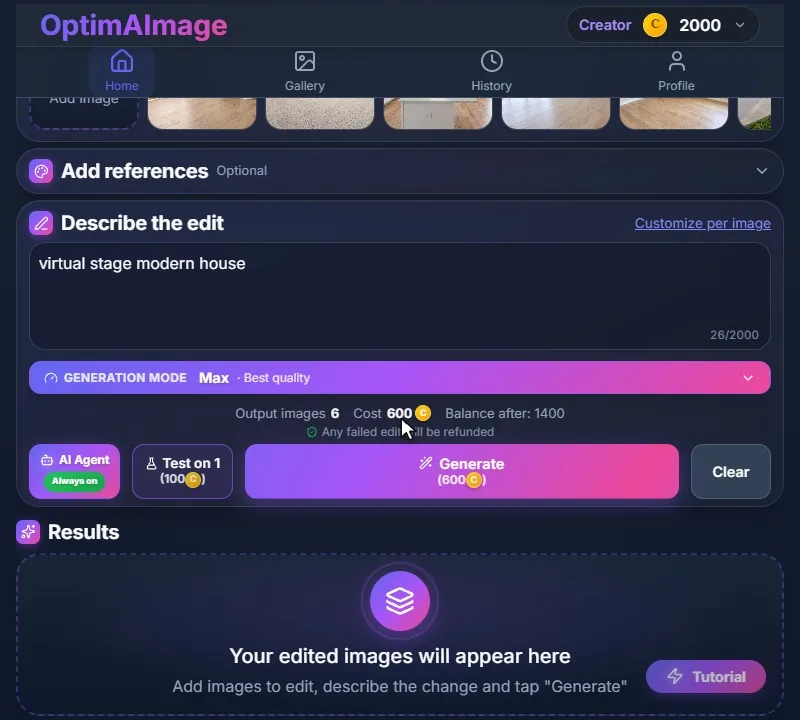
Write one instruction for the whole batch. Ours was four words: “virtual stage modern house”. Short works because the AI Agent turns it into a separate, room-aware brief for every photo. It notices the fireplace, the kitchen island or the sliding doors and stages around them.
If one room needs something different, use Customize per image to give that photo its own instruction while the others keep the shared one.
4. Pick a generation mode
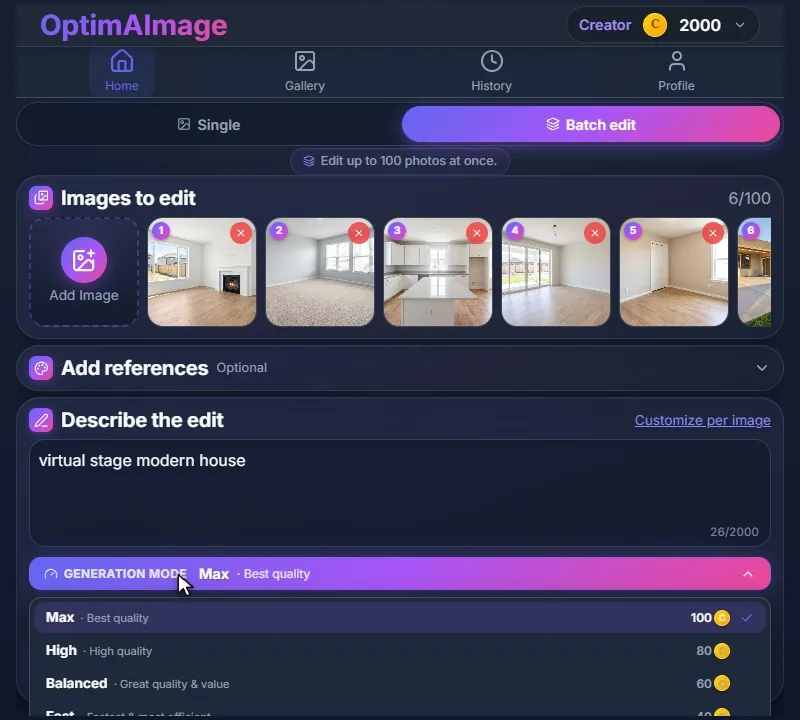
The mode sets the quality and the cost per photo: Max (100 credits), High (80), Balanced (60) or Fast (40). For listing photos that buyers will look at full screen, Max is the safe choice. Fast is useful for a quick first look at a layout.
5. Check the cost and generate
Above the Generate button you see the number of output images, the total cost and your balance afterwards. Our six rooms in Max mode came to 600 credits. If an edit fails, its credits are refunded automatically.
Not sure about your instruction yet? Test on 1 runs only the first photo. When you like that result, the main button turns into “Generate remaining” for the rest of the batch.
Click Generate and confirm the cost.
6. Watch the results arrive, or close the app
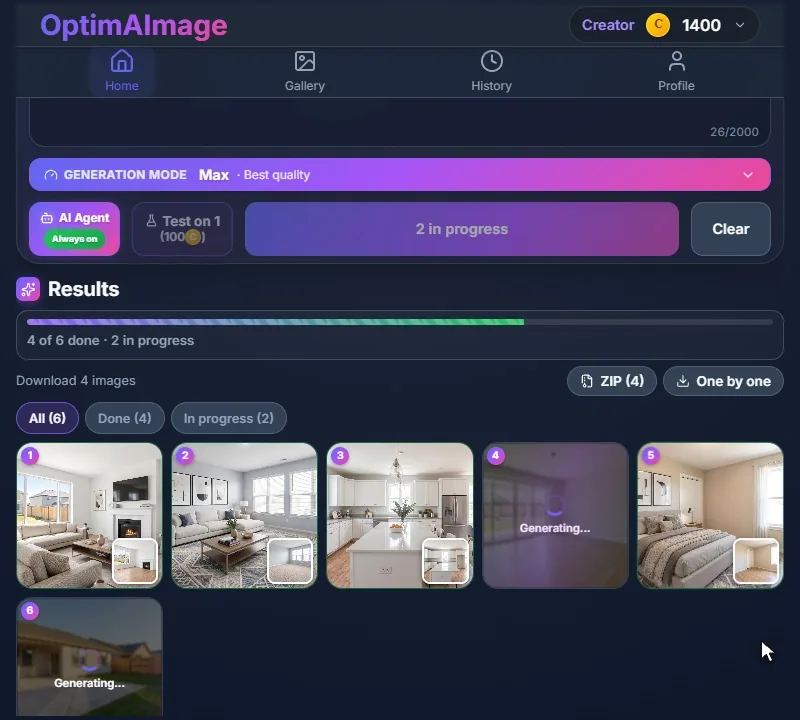
Rooms finish one by one and appear in the results grid as soon as each is done, under a progress bar. You don't have to wait on the page: close the app, and if you allowed notifications, you'll get one when the whole batch is finished. The batch is also saved in your History.
7. Review and download
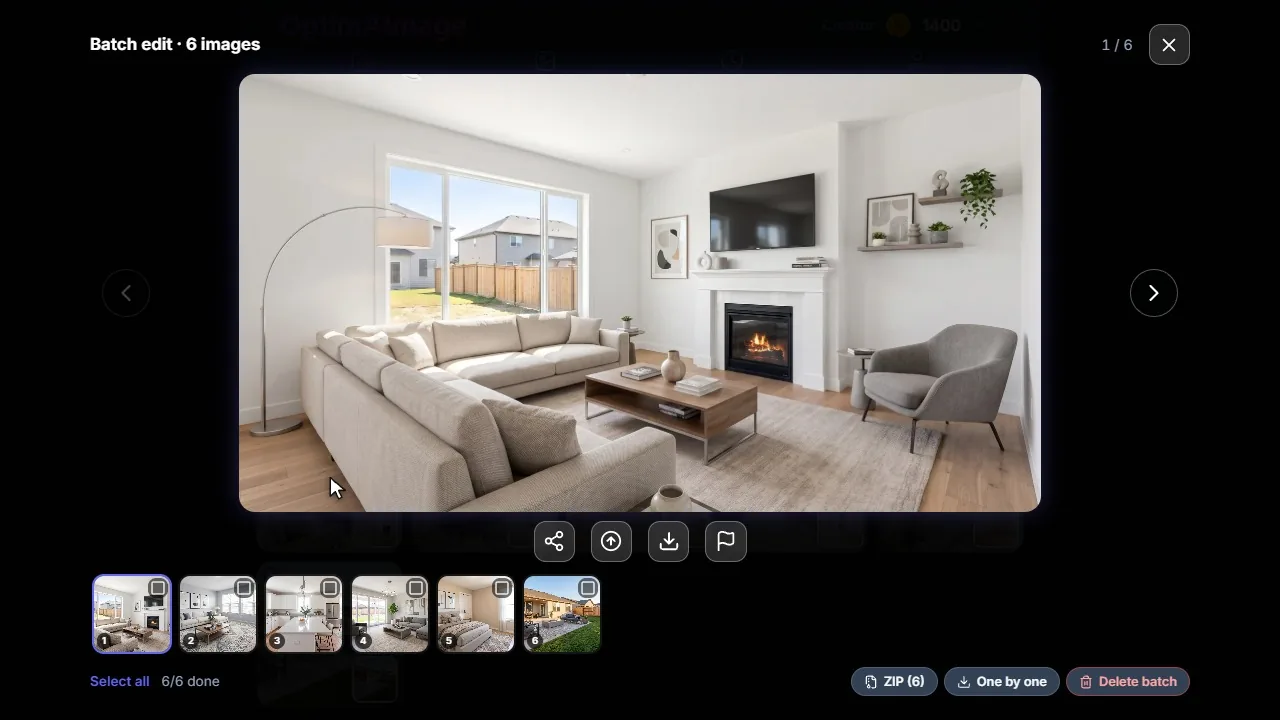
Each result card shows the original photo in its corner, so you can compare at a glance. Open any card to see it full size and swipe through the batch. When you're happy, download everything as one ZIP file or one by one.
Tips for better results
- Name the room type when it matters. With a short prompt, the AI decides what each room should be. In our case study, it turned a small spare room into a bedroom. If you need a home office, say so with Customize per image.
- Keep one instruction for one look. A shared instruction gives you a listing that looks furnished by one designer. Add a style word, such as “Scandinavian” or “warm traditional”, to steer the whole house.
- Use references for a specific piece. A photo of the sofa or the palette you want, added under Add references, is applied to every room.
- Label staged photos. Most markets require you to disclose virtual staging. Our guide to virtual staging disclosure and MLS rules explains what's allowed.
Getting started
Batch edit turns a whole listing into one task: upload the rooms, write one sentence, click once. New accounts get free credits with no credit card required, so you can try staging a single room first. Then open the AI virtual staging tool and stage your next listing in one batch.