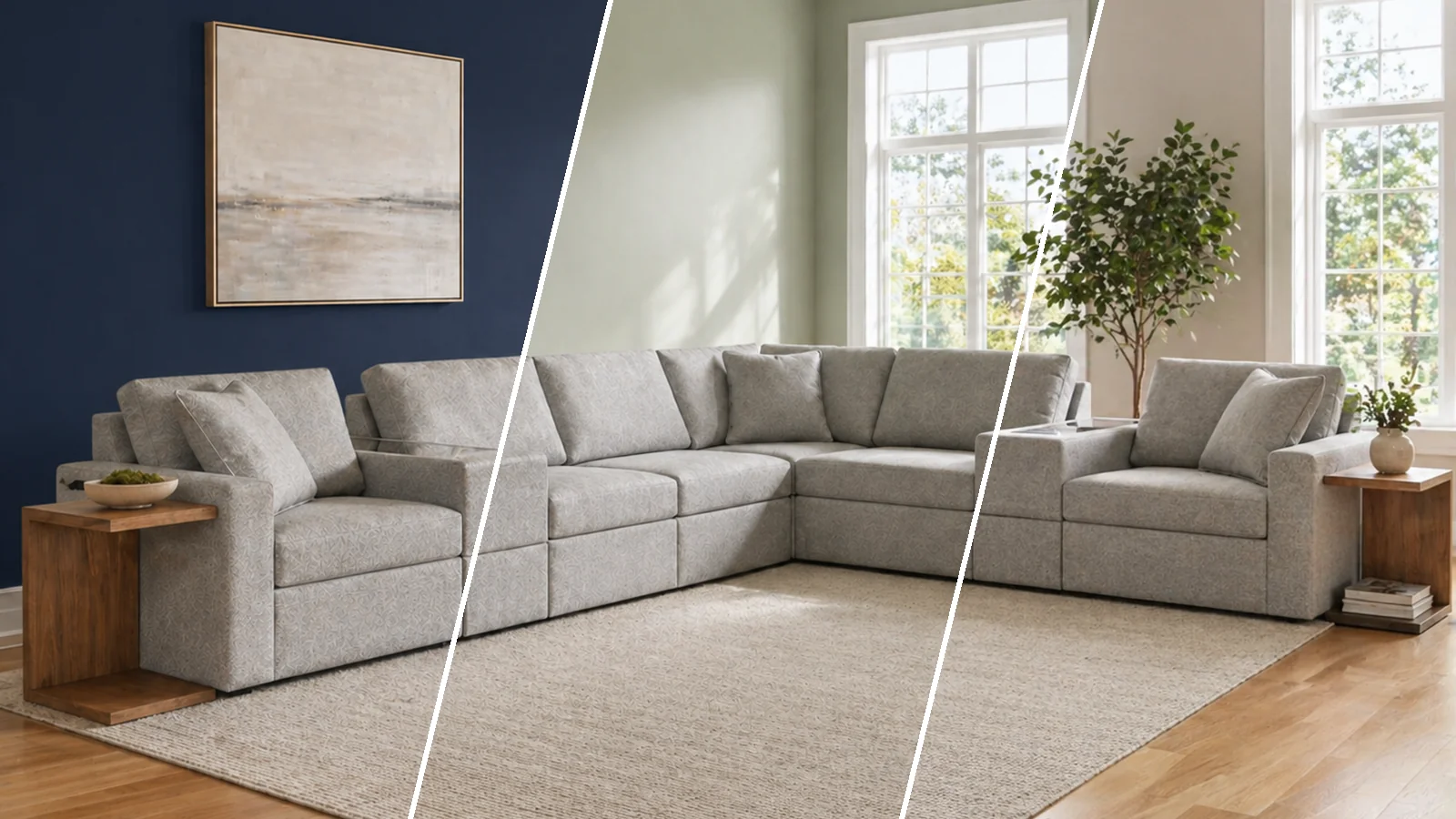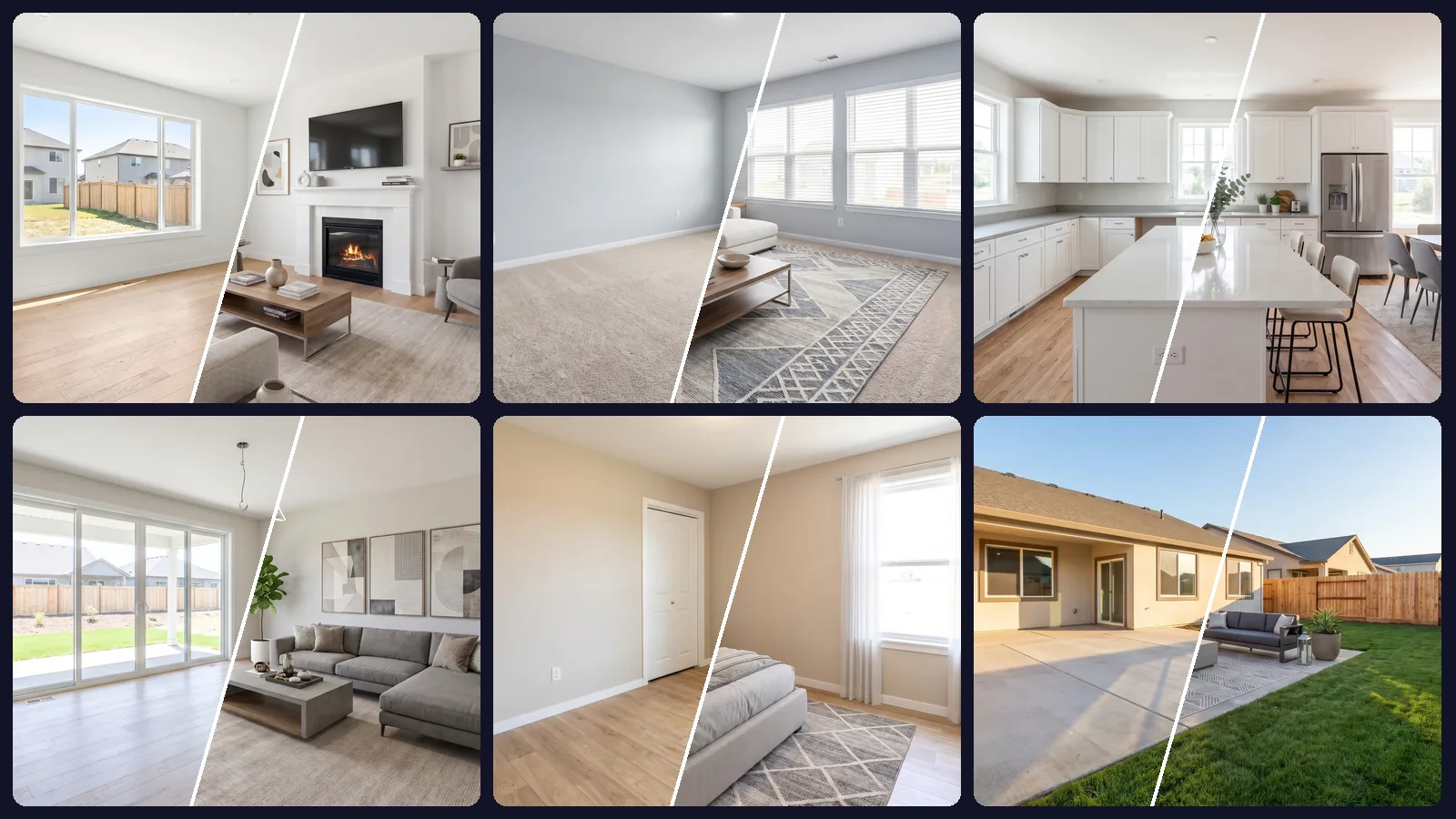
Want to take a picture of your house or a room and design it? The quickest way to know whether a sofa, a countertop or a set of patio furniture works in your home is to see it there. This tutorial shows how to design your house with AI in OptimAImage, using the AI house design generator: upload one photo of your place, add photos of the items you're considering, describe the change in one sentence. First as a short video, then step by step.
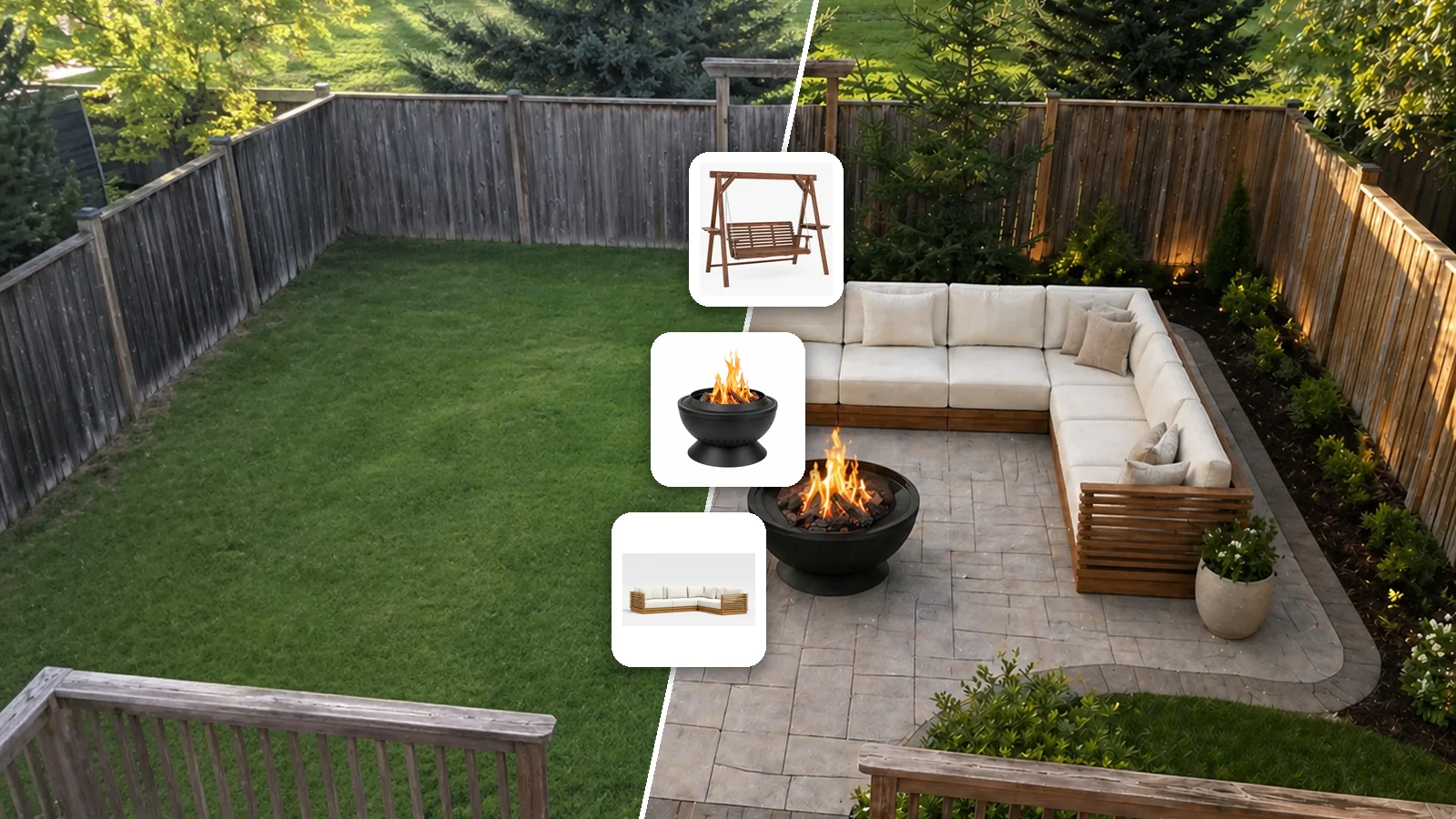
Our example is a bare backyard and three products: a porch swing, a fire pit and an outdoor sofa.
Watch the full walkthrough
The video is about a minute long. The steps below cover the same flow in more detail, with notes for designing the outside of your house too.
Before you start
You need three things:
- A photo of your place. A room, your yard or the front of your house, taken from a good angle in daylight. A phone photo is enough.
- Photos of the items you're considering (optional). Furniture, decor or materials: a product photo from a store's website, a picture you took in the showroom, or a swatch of tile or paver. Up to 4.
- Credits for the image. The Generate button shows the cost before anything runs. New accounts get free credits, so your first design is free.
Step-by-step: design your house from a photo
1. Upload a photo of your place
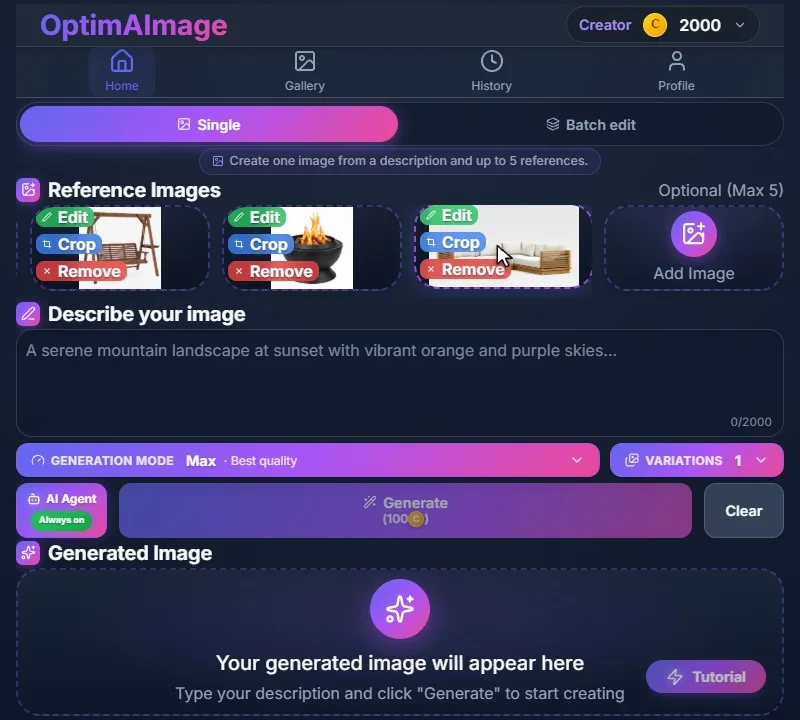
Open the editor in Single mode and click Add Image under Reference Images. Pick the photo of your room, yard or house. If something you don't want in the design takes up the edge of the frame, crop it right there.

2. Add photos of the items you're considering
Click Add Image again and pick the product photos; you can select several at once. A photo on a plain background works best, because the AI sees exactly which item you mean. Your place plus up to 4 items fit in one request.
3. Describe the change in one sentence
Say what to do with the items, and anything else you want changed. Ours was “Design my backyard with these items and new paver”. Indoors, something like “Place it in the corner. The lamp should face the sofa.” works the same way.

4. Let the AI Agent write the brief
The AI Agent is always on. It turns your sentence into a detailed design brief: where each item goes, how it sits in your light and perspective, and what to keep exactly as it is. You don't need to write long prompts.
5. Check the cost and generate
The Generate button shows the cost. Max mode, the best quality, costs 100 credits per image; High (80), Balanced (60) and Fast (40) cost less. If an image fails, its credits are refunded automatically. Click Generate. You don't have to wait on the page: close the app, and if you allowed notifications, you'll get one when your design is done.

6. Open your design and download it
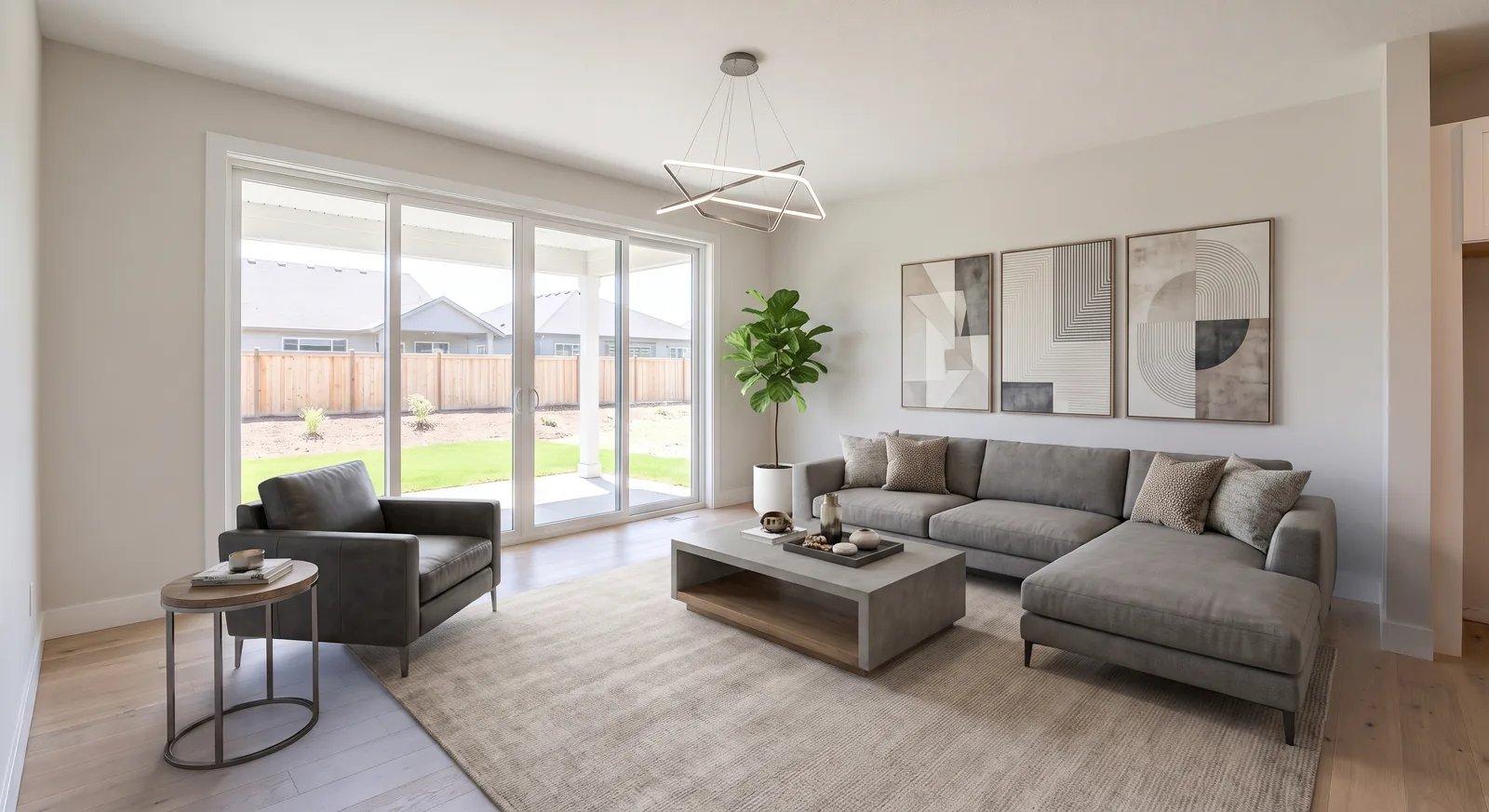
Open the result to see it full size: your place, designed with your items, following your instructions. Download it, or share it with your family, your contractor or the store. It's saved in your History, so you can come back to it or use it as the starting point for the next change.

Design the outside of your house the same way
To upload a picture of your house and change the exterior, take a straight-on photo of the front and add photos of what you want to see: a paver swatch for the driveway, a door, windows or siding. The AI keeps the house, the roof and the landscaping as they are.
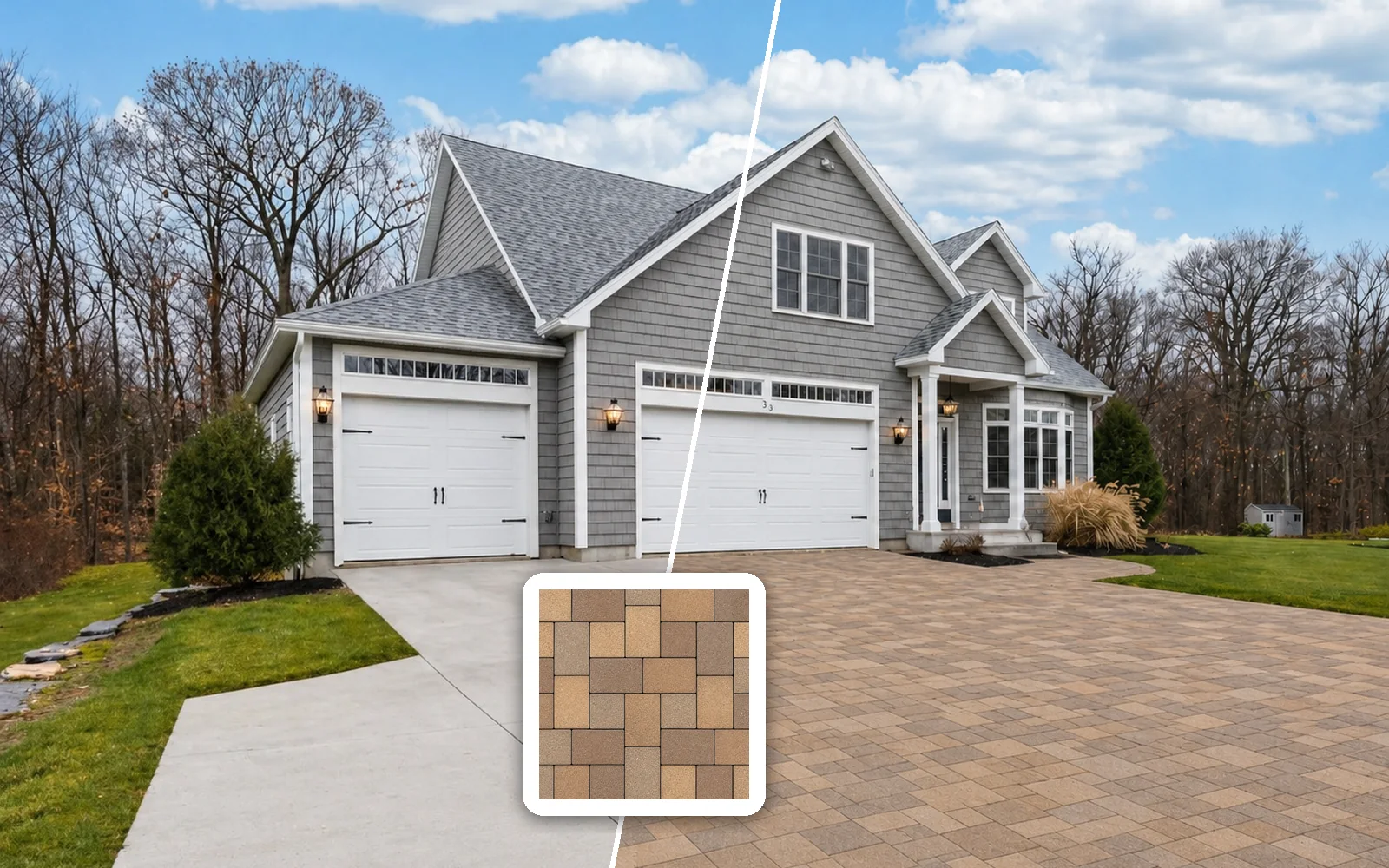
Want a change in one exact spot? Draw a box on your photo with the built-in editor and say what goes there, for example “Change red rectangles to picture windows”.
Tips for better results
- Show the whole space. Step back so the floor or the ground is in the frame; the AI needs room to place things.
- One clear product per photo. Crop product photos to the item you mean, ideally on a plain background.
- Say where things go. “In the corner”, “facing the sofa” or “as the countertop and backsplash” gets the placement right the first time.
- Check sizes with the seller. The design is a visualization: use it to decide, then confirm dimensions and details before you order.
Getting started
Designing your house with AI turns “will it fit?” into something you can see: one photo of your place, photos of your items, one sentence. New accounts get free credits with no credit card required, and plans start at $9.99/month. More ideas: our AI furniture visualizer guide and AI home remodel guide. Then try it on a photo of your home before you buy.