A paint chip shows you a two-inch square. What you actually want to know is how sage green or navy looks on your own walls, next to your sofa and in your light, or how your house looks with new siding and trim. This tutorial shows how to paint your house or a room with AI using the AI house paint visualizer in OptimAImage: upload one photo, list the colors you’re considering and get one image per color to compare. First as a short video, then step by step.
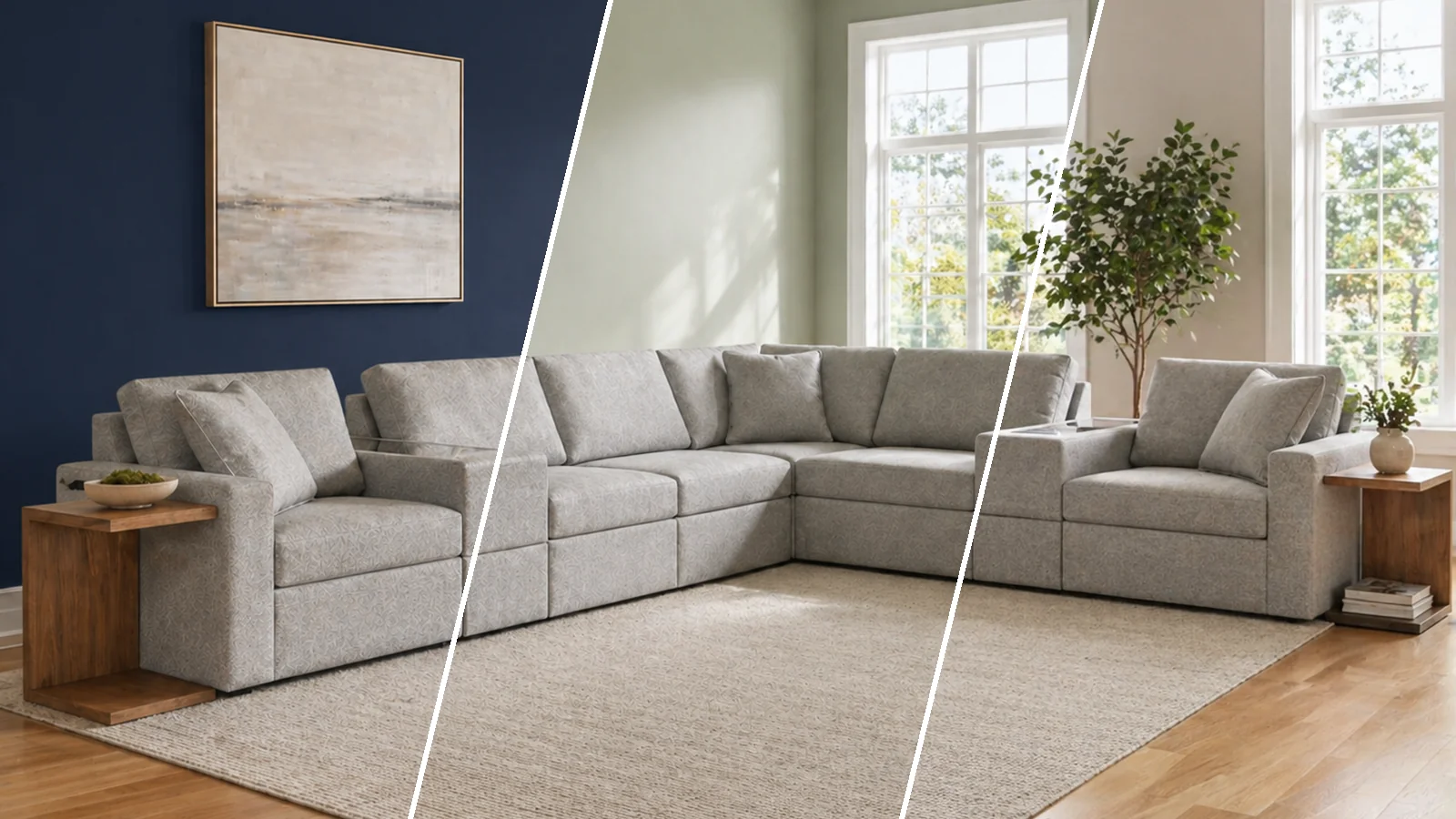
Our example is a real living room and one prompt with two options: sage green walls, or a navy blue accent wall on the left.
Watch the full walkthrough
The video is just over a minute long. The steps below cover the same flow in more detail, with notes for painting the outside of your house too.
Before you start
You need two things:
- A photo of the room or the house. A straight-on daylight photo from your phone is enough. Show the whole wall, or the whole front of the house from the ground to the roofline. Our room paint visualizer guide has more photo tips.
- Credits for the images. Each image costs the credits of the mode you pick, and the Generate button shows the total before anything runs. New accounts get free credits, so you can paint your first room for free.
Step-by-step: paint my house with AI
1. Upload a photo
Open the editor in Single mode and click Add Image under Reference Images. Pick the photo of your room or the front of your house. If a car or a ladder takes up the edge of the frame, crop it right there.

2. List the colors you’re considering
Type the colors in the prompt box as a numbered list, one option per number. Ours was “try these paints: 1. sage green 2. navy blue accent wall on left”. Each number becomes its own image.
Name the surface when it matters: “accent wall on left”, “ceiling”, “trim”, “front door” or “brick”. For the outside of a house, a prompt like “try these: 1. sage green siding with white trim 2. navy with a red front door” works the same way. Paint brand color names work too; treat the result as a visual guide.

3. Set Variations to the number of colors
Open Variations next to Generation Mode and pick the number of colors in your list, up to four from one prompt. The menu shows the credit cost of each choice.

4. Let the AI Agent write the instructions
The AI Agent is always on. It turns your short list into a separate, detailed instruction for each color: which surfaces to repaint and what to keep exactly as it is, such as the furniture, the floor, the windows or the roof. You don’t need to write long prompts.
5. Check the cost and generate
The Generate button shows the total. Max mode, the best quality, costs 100 credits per image, so two colors cost 200 credits. High (80), Balanced (60) and Fast (40) cost less. If an image fails, its credits are refunded automatically. Click Generate.

6. Compare the colors
Both colors are painted at the same time and appear side by side under a progress bar. Each result card shows your original photo in its corner, so you can compare at a glance. You don’t have to wait on the page: close the app, and if you allowed notifications, you’ll get one when they’re done.

7. Open full size and download
Open a result to see it full size and flip to the other color with the arrows. Download your favorite, or both as one ZIP file. The set is saved in your History, so you can come back to it or share it with your family or your painter.

Paint the outside of your house the same way
The steps are identical for an exterior paint visualizer job: upload a straight-on photo of the front of your house and list the siding, trim, door, shutter, brick or stucco colors you want to compare. The AI keeps the roof, windows and landscaping as they are.
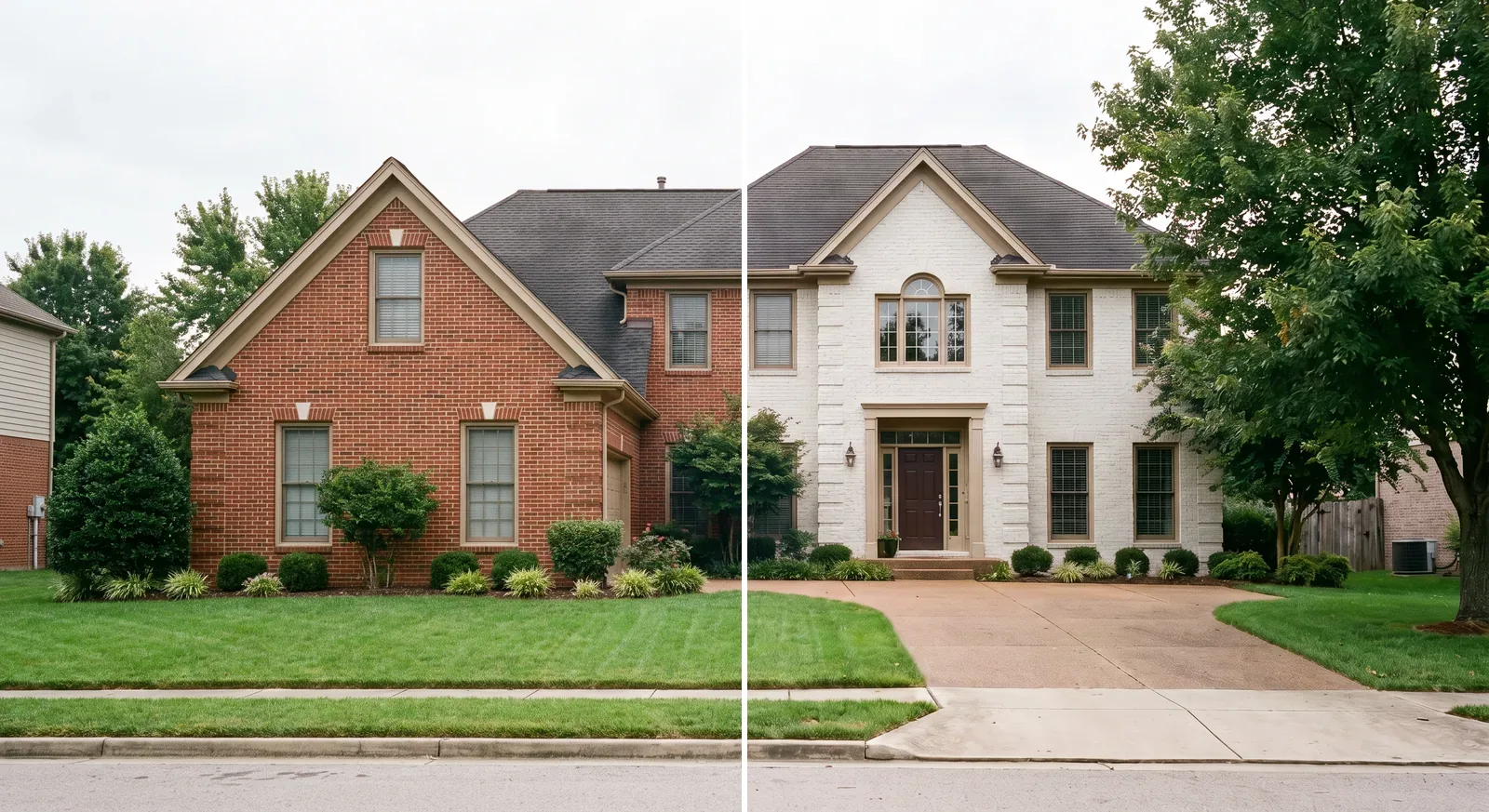
No colors in mind yet? Skip the list, write “paint the house in a new color scheme with contrasting trim” and set Variations to 4: the AI suggests four different schemes. Our exterior paint visualizer guide lists popular house color combinations to start from.
Tips for better results
- Name the surfaces. “Walls”, “accent wall on left”, “trim”, “cabinets” or “front door” tells the AI exactly what to repaint.
- One idea per option. Keep each numbered item to one color or scheme, so the comparison is fair.
- Shoot in daylight. The AI keeps the light of your photo, so a dim evening photo makes every color look darker.
- Confirm with a real sample. Use the AI preview to narrow the choice down, then check the winner with a large physical sample before you buy paint.
Getting started
Painting your house with AI turns a color decision into something you can see: upload a photo, list the colors, compare. New accounts get free credits with no credit card required, and plans start at $9.99/month. Then try it on a photo of your house and make a better paint decision before you buy.